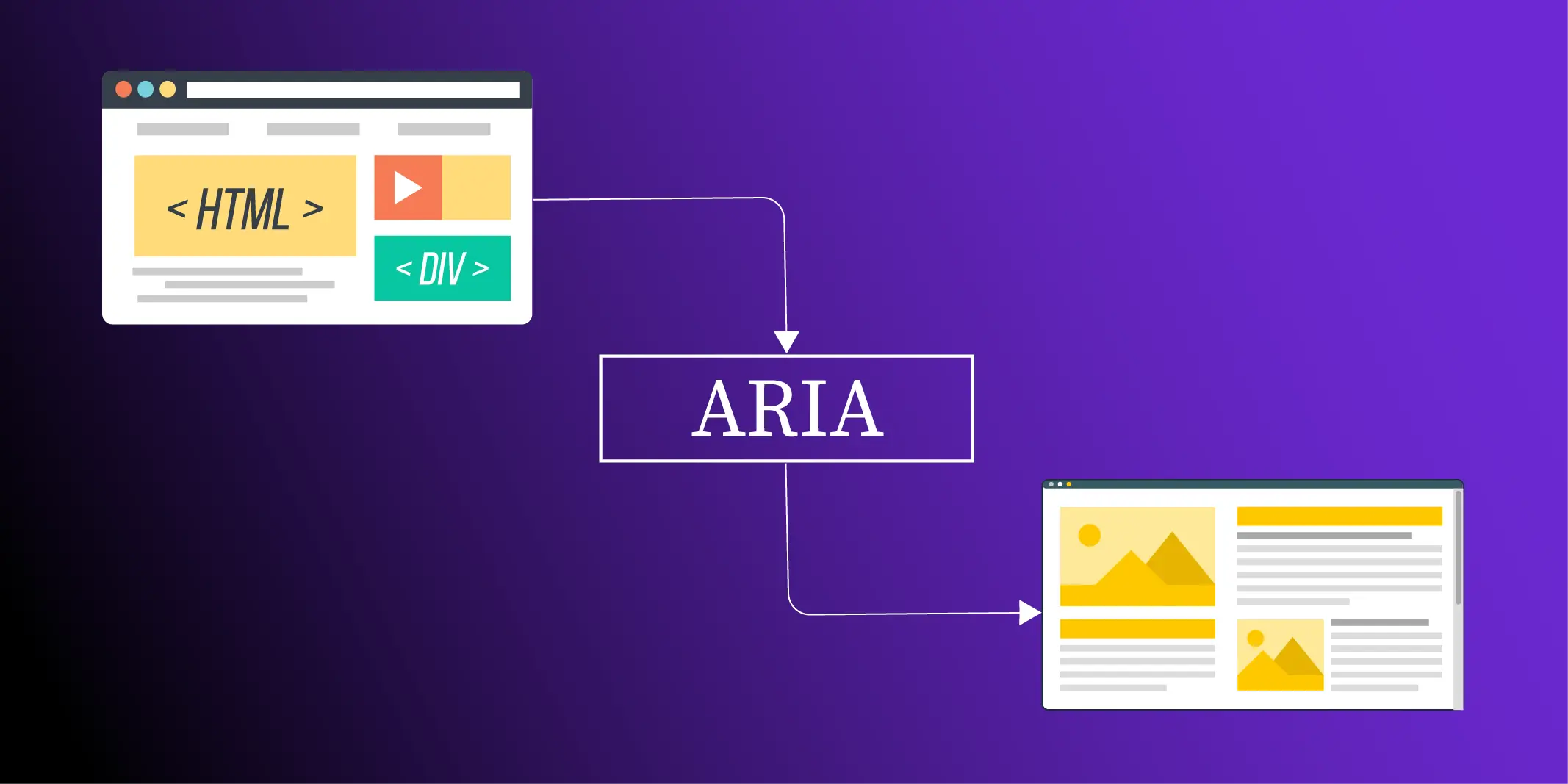
A slide that appears clear and well designed to most viewers can be completely unusable for someone relying on a screen reader. Accessibility barriers in digital content affect a large global audience. According to the World Health Organization, 1.3 billion people, about 16% of the world’s population, live with a significant disability. Many of these individuals rely on assistive technologies to access digital information.
In April 2024, the U.S. Department of Justice issued a final rule updating Title II of the Americans with Disabilities Act, requiring state and local governments to ensure their digital content meets WCAG 2.1 Level AA standards. Large public entities must comply by April 24, 2026. For many organizations, this directive means ensuring every presentation meets the requirements of an ADA-compliant PowerPoint.
This blog covers how to audit, fix, and structure PowerPoint slides so they meet modern accessibility expectations and remain usable for screen reader and assistive technology users.
Understanding ADA Compliance in PowerPoint
Before diving into accessibility strategies, let’s focus on what ADA compliance means specifically for PowerPoint presentations. The ADA mandates that all digital content, including presentations, must be accessible to individuals with disabilities. For PowerPoint, this involves:
- Ensuring that slides are navigable for screen readers used by people with visual impairments.
- Including captions and alternative text (alt text) for multimedia elements like images and videos.
- Structuring content to support cognitive accessibility and ease of navigation.
By following these principles, organizations can create presentations that align with accessibility expectations while improving usability for a broader audience.
1. Getting Started: Basic Accessibility Features
Use Accessible Templates: Start with an accessible template that adheres to the principles of good design. Microsoft offers built-in templates designed for accessibility. These templates often use high-contrast colors and readable fonts, which are great for visibility.
Example: A corporate trainer might use an accessible template to design a training session on leadership skills, ensuring that all participants, including those with visual impairments, can follow along easily.
Slide Layouts Matter: Utilize the predefined slide layouts in PowerPoint. This not only keeps your slides organized but also helps screen readers interpret your content correctly.
2. Text and Color Considerations
Choose Legible Fonts: Select fonts that are easy to read. Sans serif fonts like Arial or Calibri are excellent choices. Ensure your font size is large enough, typically at least 18 points, to be readable by all audience members.
Example: A marketing professional preparing a product launch presentation should prioritize legibility to ensure that every stakeholder can clearly understand key messaging.
Contrast is key: Make sure there is enough contrast between the text and background colors. According to WCAG guidelines, normal text should have a contrast ratio of at least 4.5:1, while large text and important visual elements such as icons should meet a 3:1 contrast ratio. Tools like the WebAIM Color Contrast Checker can help verify that your color choices meet accessibility standards.
Example: An educator creating slides for a classroom can use high-contrast color combinations to highlight important information, making it easier for all students, including those with color vision deficiencies, to understand key concepts.
3. Enhancing Accessibility with Alt Text and Descriptions
Add Alt Text to Images: For any images, charts, or graphs, always include alternative text (alt text) that describes the content. This allows screen readers to convey the information to visually impaired users. Keep it concise but descriptive.
Example: A researcher presenting findings at a conference should include alt text for graphs, ensuring that attendees with visual impairments can access the data being presented.
Use Descriptive Hyperlinks: Instead of using “click here,” make your hyperlinks descriptive (e.g., “Download our accessibility guide”). This helps all users understand what they are clicking on.
4. Advanced Techniques: Multimedia and Interaction
Include Captions for Videos: If your presentation includes video content, ensure that it includes synchronized captions. Under WCAG 2.1 Level AA, any video with audio must provide captions so that deaf or hard of hearing users can access the information. In PowerPoint, captions should be added by uploading a WebVTT (.vtt) caption file directly to the embedded video. This allows the captions to remain synchronized with the video playback.
If the video contains important visual information that is not explained in the audio, you should also provide an audio description or a descriptive transcript so that screen reader users can understand the full context of the content.
Example: A consultant presenting a case study video during a client meeting should attach a WebVTT caption file to the embedded video. If the video includes visual demonstrations or on-screen actions that are not explained through narration, providing an additional descriptive transcript ensures that all viewers can fully understand the presentation.
Interactive Elements: Consider using interactive elements like quizzes or polls. Ensure these elements are accessible and provide an alternative format for users who may have difficulty interacting with them.
Example: A trainer facilitating a workshop can incorporate polls that are designed to be accessible, encouraging participation from everyone in the room.
5. Exporting Accessible PowerPoints to PDF
Export to PDF: Many PowerPoint presentations are eventually shared as PDF files for distribution on websites, portals, or email. When exporting your presentation, ensure that document structure tags for accessibility are enabled in the export settings. These tags preserve the reading order, headings, and structural information created in PowerPoint so that screen readers can interpret the content correctly in the PDF format. If you need to fix or verify the final document, check out our comprehensive guide on how to make a PDF accessible to ensure full compliance.
Example: A university department sharing lecture slides on its website should export the presentation with document structure tags enabled. This ensures that students using screen readers can navigate the PDF version of the slides in the correct reading order.
Tip: In PowerPoint, go to File → Save As → PDF → Options and make sure “Document structure tags for accessibility” are checked before exporting.
6. Complex Data Tables
Keep Tables Simple: PowerPoint does not natively support complex table structures, such as merged or split cells, for screen readers. These layouts can make it difficult for assistive technologies to interpret the correct relationships between rows and columns. To improve accessibility, keep tables simple with clearly defined rows and columns, and avoid merging cells whenever possible. If the information requires a complex layout, provide an alternative text-based summary that explains the data in a clear and readable format.
Example: A financial report slide showing quarterly performance should present the data in a simple table structure. If the dataset includes layered categories or grouped values, adding a short text summary below the table can help screen reader users understand the key insights without navigating a complex table layout.
7. Final Checks: Reviewing for Accessibility
Use the Accessibility Checker: PowerPoint includes an accessibility checker that helps identify potential issues before you share your presentation. Go to the Review tab and click on “Check Accessibility.” In recent versions of PowerPoint, this action opens a dedicated Accessibility ribbon at the top of the interface. This ribbon brings key tools into one place, including options for adding alt text, reviewing reading order, checking slide titles, and evaluating color contrast. Instead of searching through multiple menus, users can review and fix accessibility issues directly from this centralized tab.
Manual vs Automated Checks: While the Accessibility Checker can detect common problems such as missing alt text or insufficient contrast, automated tools cannot identify every accessibility barrier. A manual review is still necessary to ensure that slides make sense when read in order and that important information is not conveyed by color alone.
Test with Screen Readers: Before finalizing your presentation, test it with screen readers such as NVDA or JAWS to confirm that the content is announced correctly and follows a logical reading order.
Conclusion: Empowering Everyone with Accessible Presentations
Accessible presentations are no longer optional. With the updated ADA Title II rule and the upcoming 2026 compliance deadline, organizations must ensure their presentations can be used by people who rely on assistive technologies.
Applying the steps in this guide helps teams build an accessible PowerPoint presentation with stronger PowerPoint accessibility and clearer communication for all audiences.
If you need help reviewing or fixing large volumes of slides, our expert ADA compliance services for PowerPoint can help. Make your presentations accessible today. Many teams also work across platforms—if your organization presents in Google Slides, the same accessibility principles apply, and we offer dedicated remediation for that format too.
 How to Make a Word Document ADA Compliant and Accessible
 PDF to HTML Conversion Spec Updated to v1.2: The Algorithm Now Expects Well-Tagged PDF
 PDF Remediation Pricing: Cost Per Page, Key Factors, and Estimates