
New to the accessibility of PDFs? Discover the essential ideas, standards, and best practices for making PDFs that are accessible to all. Learn how to make documents easier to use and navigate by using accessible forms, appropriate structure, tags, and reading order.

PDF Accessibility Requires Meeting These Standards
Accessible PDFs are built on two important standards: WCAG 2.1 AA and PDF/UA. WCAG focuses on the user experience, ensuring content is accessible to people with disabilities, while PDF/UA provides the technical guidelines needed to structure PDFs so they work effectively with screen readers and other assistive technologies. Together, these standards help create PDFs that are both inclusive and compliant.
WCAG 2.1 AA
Web Content Accessibility Guidelines
What is WCAG 2.1 AA?
The international digital accessibility standard that defines how
content should be made perceivable, operable,
understandable, and robust for users with disabilities.
Why does WCAG apply to PDFs?
PDFs are digital content documents. If a PDF is published on a
website, shared with employees, customers, students, or the
public, it must remain accessible to people using screen readers,
keyboard navigation, magnification tools, and other assistive
technologies.
Key WCAG requirements for accessible PDFs
• Proper heading structure that supports navigation
• Sufficient color contrast between text and background
• Alt text for meaningful images, charts, and graphics
• Keyboard accessible links, buttons, and form fields
• Logical reading order for screen reader users
• Descriptive link text instead of vague phrases like “click here”
• Accessible form labels and instructions
• OCR text recognition for scanned PDF documents
PDF/UA
PDF Universal Accessibility
What is PDF/UA?
The international ISO standard specifically created for
accessible PDF documents.
Why is PDF/UA important?
Unlike WCAG, which applies broadly to digital content, PDF/UA
defines how a PDF must be technically structured so assistive
technologies can accurately interpret headings, paragraphs,
lists, tables, forms, images, and document navigation.
Key PDF/UA requirements
• Complete and valid PDF tagging structure
• Correct semantic tags for headings, paragraphs, lists, and tables
• Accurate reading order in the tag tree
• Defined document language settings
• Meaningful alt text for tagged figures
• Accessible table markup with header associations
• Tagged form fields with accessible names
• Proper bookmarks and navigation structure for long documents
• No untagged or artifact errors that interrupt screen readers
What Makes a PDF Accessible?
A truly accessible PDF requires proper structure, semantic tagging, and thoughtful implementation of 10 essential elements that work together to create an inclusive document experience

Heading Structure
Headings organize an accessible PDF and help users understand how the document is structured. Screen reader users often navigate by headings to jump directly to the section they need.

Reading Order
Headings organize an accessible PDF and help users understand how the document is structured. Screen reader users often navigate by headings to jump directly to the section they need.
Tags
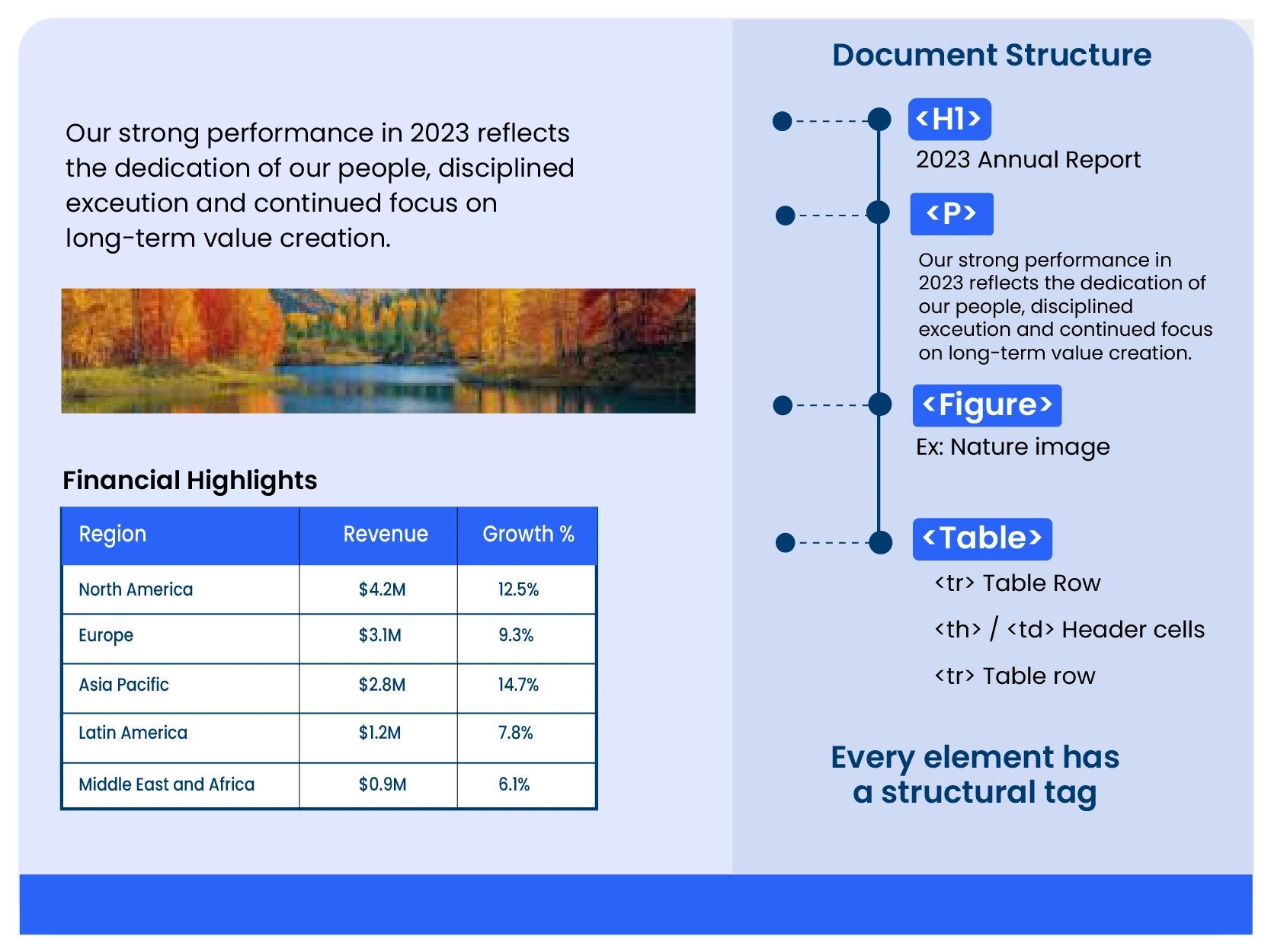
Tags are invisible markers that identify content such as headings, paragraphs, lists, tables, and images. They help screen readers understand the structure of the PDF
Alt Text for Images
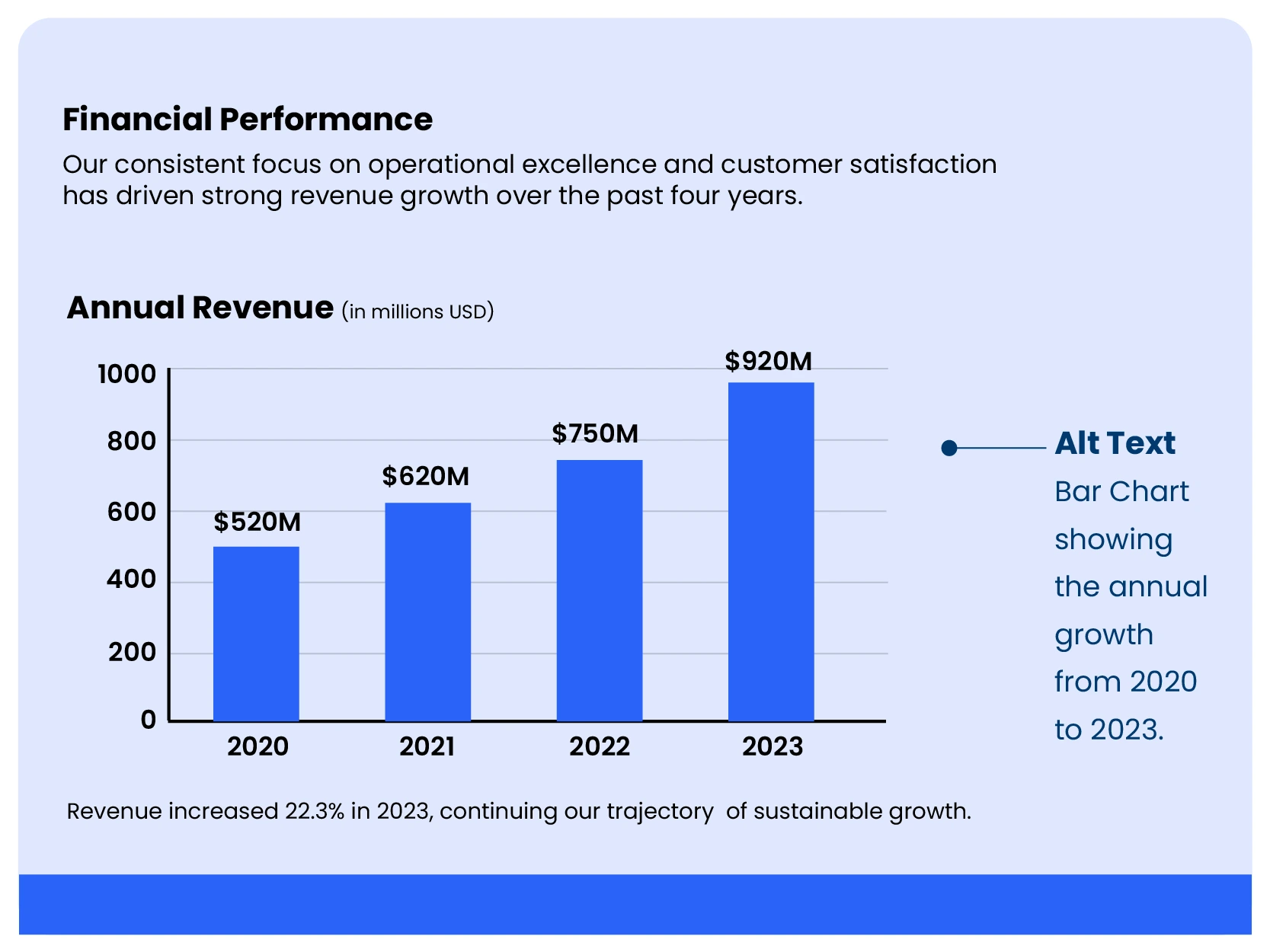
Alt text provides written descriptions for images, charts, graphs, and diagrams inside a PDF. When a screen reader reaches an image, it reads the alt text aloud.
Form Labels
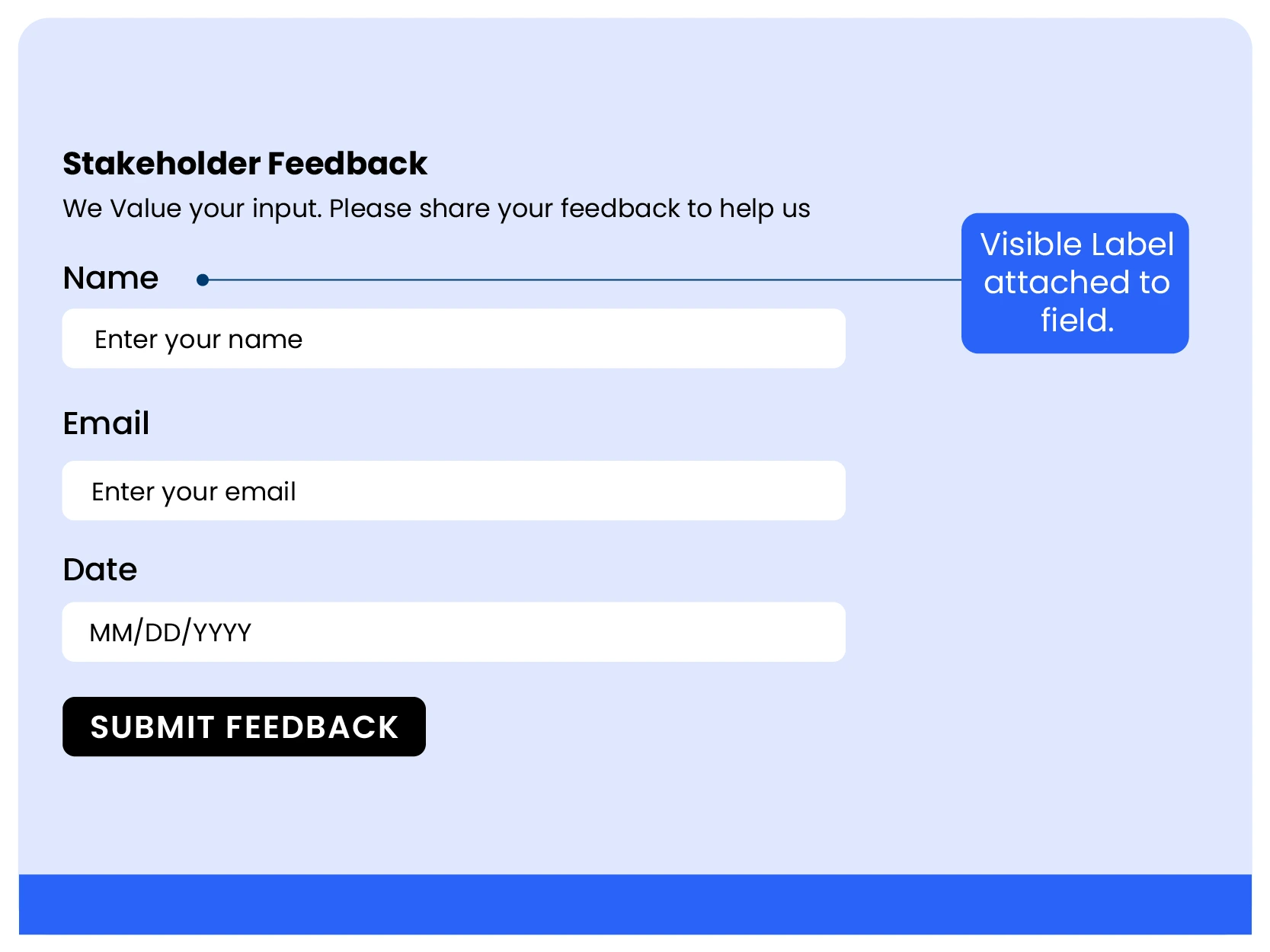
Every field in an accessible fillable PDF should have a clear label such as "Name," "Phone Number," or "Email Address." Screen readers use these labels to tell users what information needs to be entered.
Accessible Table Structure
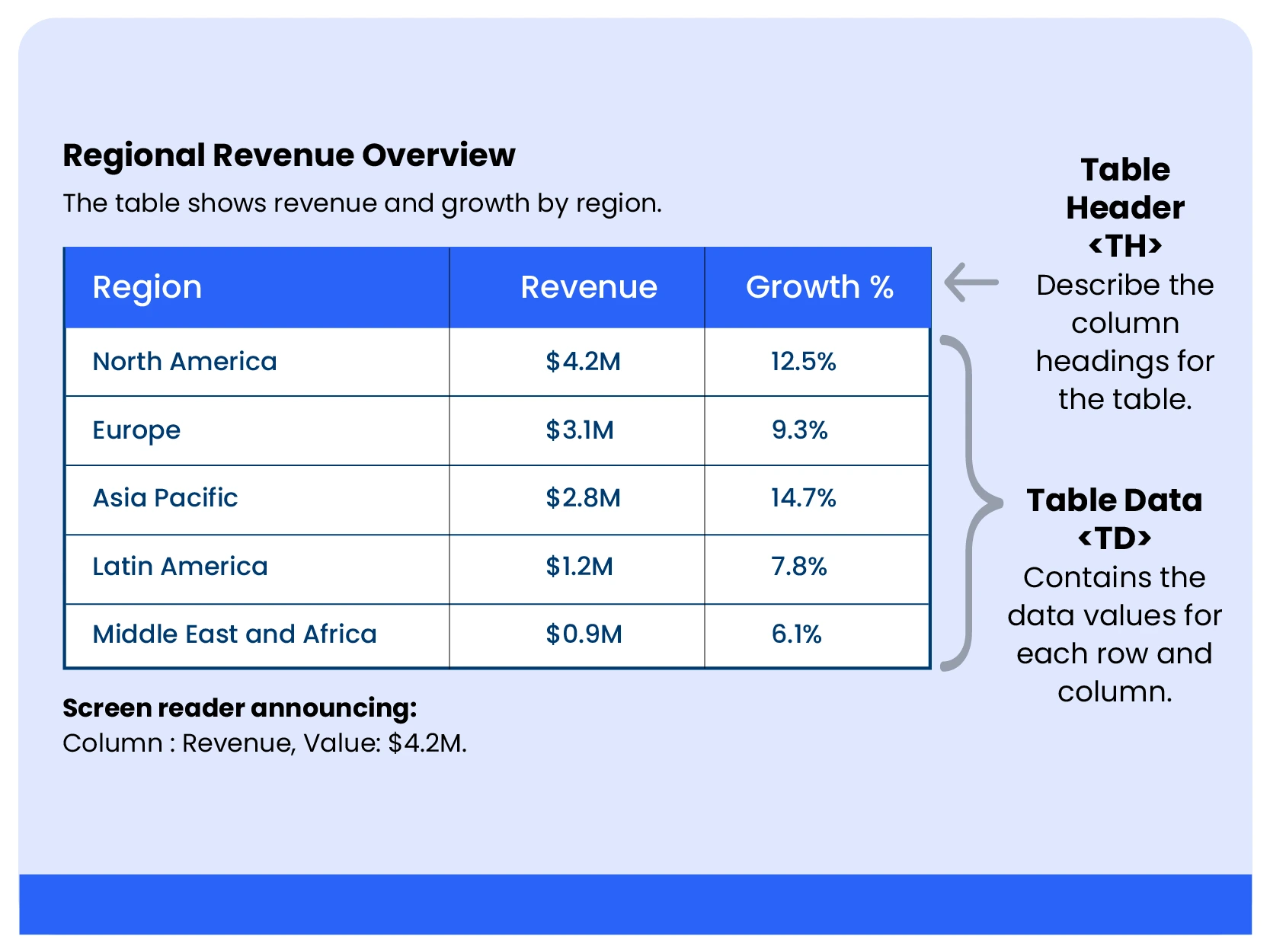
Accessible tables need properly identified header rows and logical relationships between columns and data cells. This helps screen readers announce the correct row and column information.
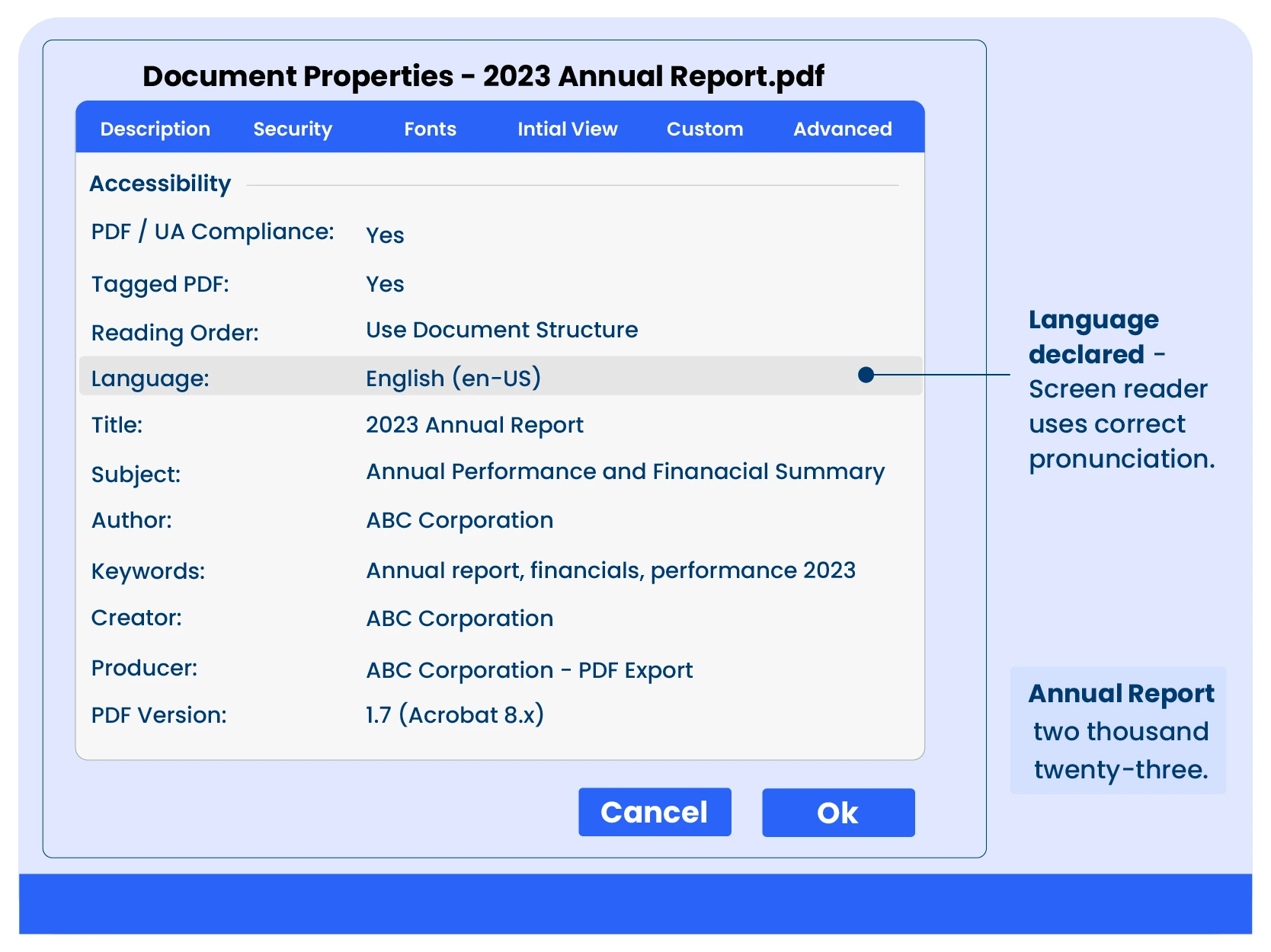
Document Language
The language of the PDF should be defined in the document settings, such as English or French. Screen readers use this information to apply the correct pronunciation and reading rules.

Color Contrast
Text should have enough contrast against its background so users with low vision or color blindness can read it clearly. WCAG requires a minimum contrast ratio for readability.
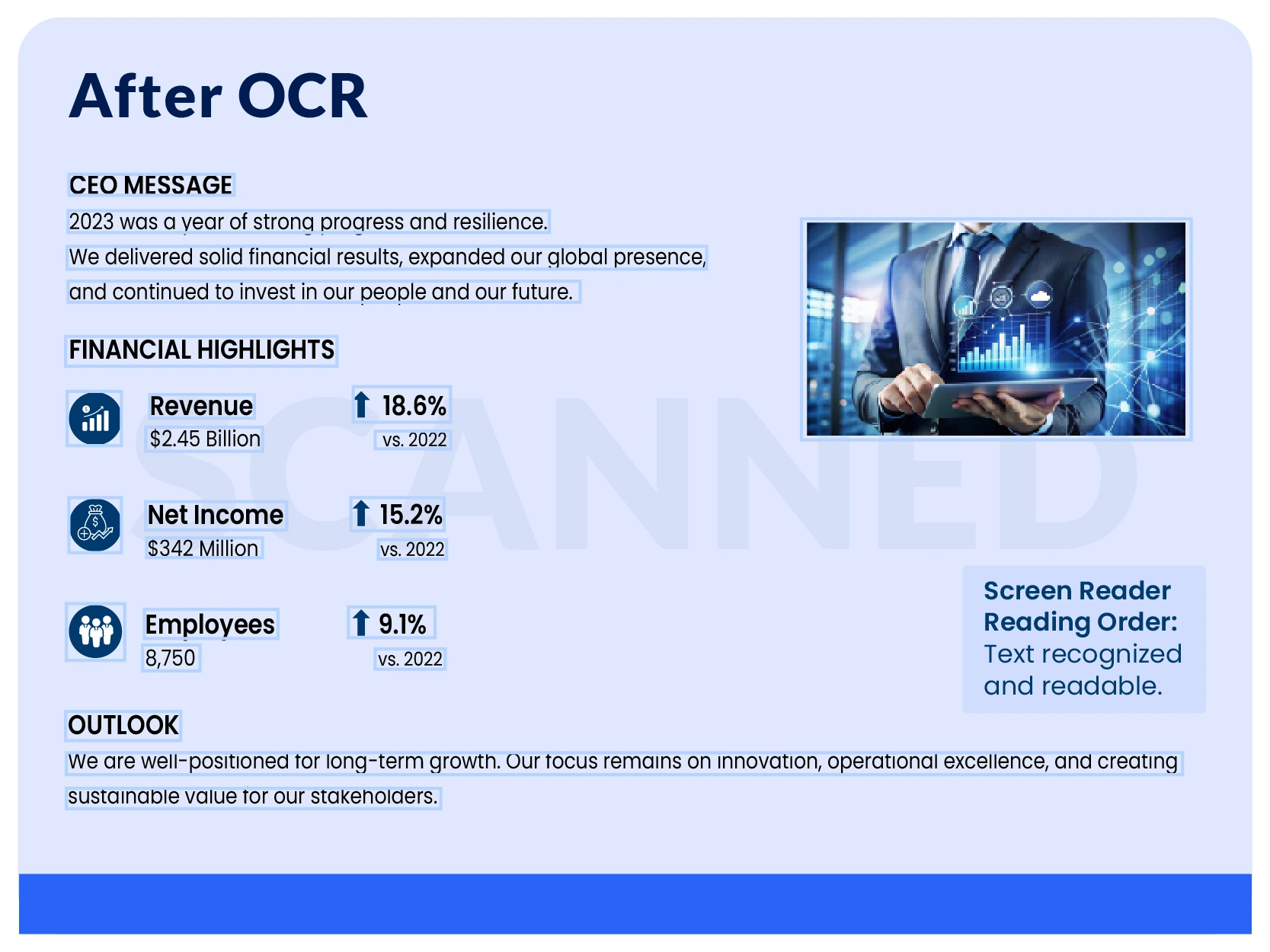
OCR for Scanned PDFs
A scanned PDF is usually just an image of text, which screen readers cannot read. OCR (Optical Character Recognition) converts scanned content into searchable and selectable text.
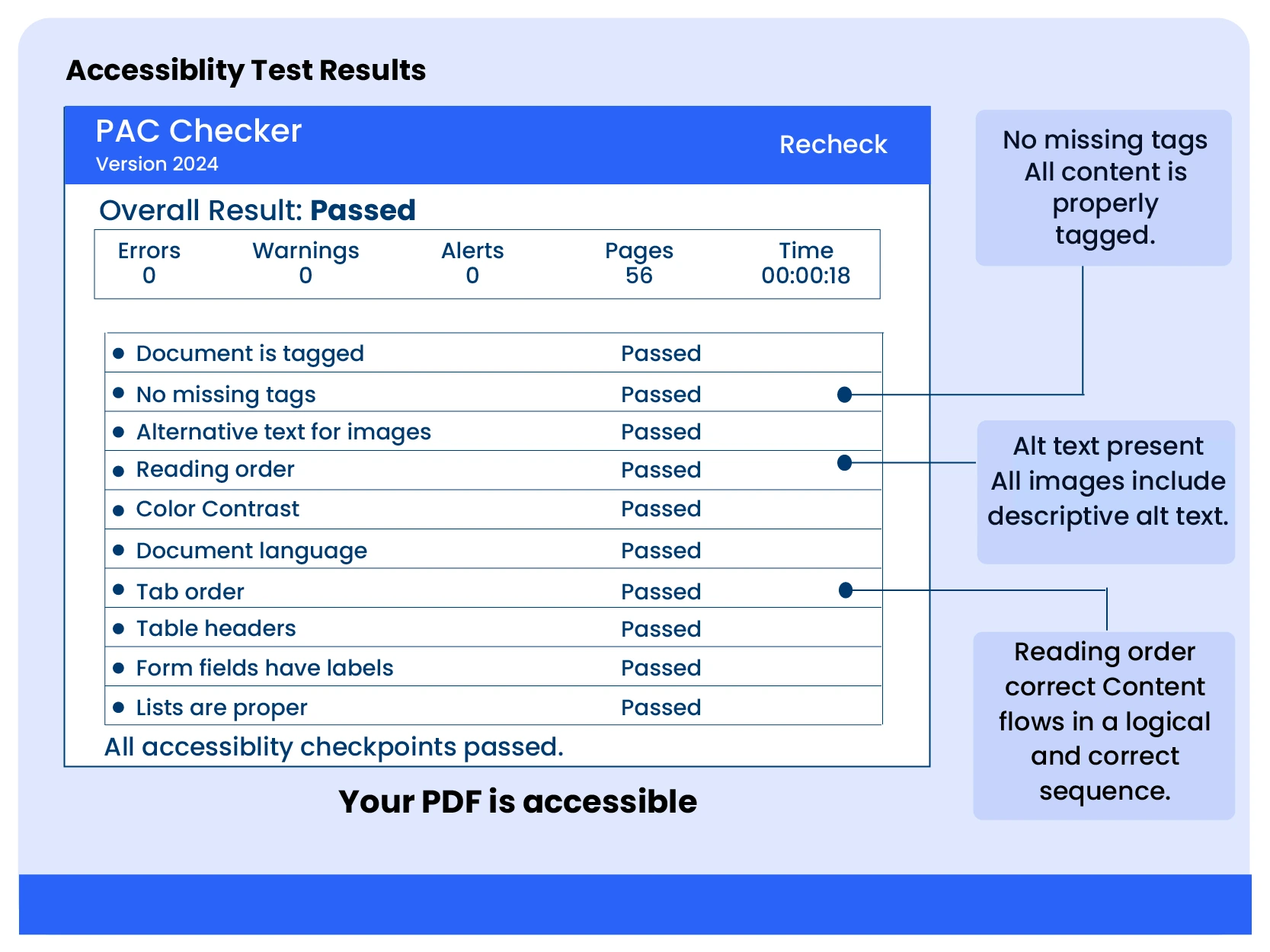
PDF Accessibility Testing
Accessible PDFs should always be tested before publishing. PDF accessibility checkers help identify issues such as missing tags, incorrect reading order, or form accessibility problems.
Step by Step Guide to Creating Accessible PDFs
Learn how proper tagging, reading order, headings, forms, and document structure come together in a fully accessible PDF
How to Make a Fillable PDF Form Accessible
A fillable PDF form should work for everyone, including people using screen readers, keyboard navigation, voice control, or other assistive technologies. If form fields are not labeled correctly or the navigation order is broken, users may not be able to complete or submit the form independently. Creating an accessible fillable PDF involves more than adding text boxes. The form needs proper labels, logical structure, keyboard accessibility, and screen reader compatibility to meet PDF accessibility and WCAG requirements.
-
Label every form field clearly
Every field in an accessible PDF form should include a clear and descriptive label such as "Full Name," "Email Address," or "Phone Number." Screen readers rely on these labels to announce what information users need to enter. Without proper form labels, users may only hear "edit field" with no context.
-
Make the PDF form keyboard accessible
Many users navigate a fillable PDF without using a mouse. Pressing the Tab key should move through fields in a logical reading order from top to bottom and left to right. Incorrect tab order is one of the most common accessibility problems in PDF forms.
-
Properly identify required fields
Using color alone to indicate required fields can create accessibility barriers. In an accessible PDF form, required fields should also be programmatically defined within the form properties so screen readers can announce them correctly
-
Use meaningful labels for check boxes and buttons
Labels such as "Option 1" or "Checkbox A" are unclear for assistive technology users. Checkbox fields, radio buttons, and submit buttons should clearly describe their purpose using meaningful labels such as "I agree to the terms" or "Subscribe to updates.
-
Add helpful instructions and error messages
Accessible forms should provide clear instructions for date formats, required fields, password rules, or submission requirements. If errors occur, users should receive descriptive error messages that explain what needs to be corrected.
-
Test the fillable PDF for accessibility
Before publishing, test the fillable PDF accessibility using keyboard navigation, screen readers, and automated tools such as PAC Checker or Adobe Acrobat Accessibility Checker. Automated scans help identify structural issues, but manual testing is important for verifying real usability and screen reader compatibility
Best PDF Accessibility Checkers and Testing Tools
Testing is an important part of creating an accessible PDF. Even well designed documents can still contain accessibility issues such as missing tags, incorrect reading order, low contrast, or untagged form fields.
A PDF accessibility checker helps identify technical problems that may affect screen readers and assistive technologies. While automated tools cannot catch every accessibility issue, they are useful for validating PDF/UA compliance, WCAG requirements, document structure, and color contrast.
Best for: Detailed PDF/UA accessibility testing

PAC Checker (PAC 2024)
One of the most widely used PDF accessibility testing tools for checking PDF/UA compliance and accessibility structure. PAC Checker is trusted by accessibility professionals for validating tagged PDFs, reading order, form fields, alt text, and semantic structure.
- Advantage: Comprehensive automated accessibility testing for PDFs
- Advantage: Validates PDF/UA structure and accessibility compliance
- Advantage: Identifies issues with tags, reading order, alt text, and forms
- Advantage: Free and regularly updated
Best for: Batch processing and technical PDF validation

VeraPDF
An open source validator designed for checking PDF/UA and PDF/A conformance across large document collections. VeraPDF is commonly used by organizations managing high volumes of PDFs that require technical accessibility validation.
- Advantage: Supports batch testing for multiple PDFs
- Advantage: Open source and completely free
- Advantage: Useful for validating large accessible PDF libraries
- Advantage: Provides detailed technical reporting
Best for: Checking WCAG color contrast compliance

WebAIM Contrast Checker
A simple browser based tool used to verify whether text and background colors meet WCAG color contrast requirements for accessibility. While it does not scan PDFs directly, it helps identify low contrast combinations that may create readability barriers for users with low vision or color blindness.
- Advantage: Fast browser based accessibility testing tool
- Advantage: No installation or download required
- Advantage: Provides clear WCAG pass or fail results
- Advantage: Useful for checking accessible text contrast in PDFs
Automated tools are an important starting point for PDF accessibility testing, but they should not replace manual review. Screen reader testing, keyboard navigation checks, and real user validation are still necessary to confirm whether a PDF is actually accessible and usable.
Frequently Asked Questions
